![FlatFrog_logo.svg]](https://help.flatfrog.com/hubfs/FlatFrog_logo.svg)
When you install FlatFrog Board for Rooms on a computer, you are given the option to install for all users on the computer.
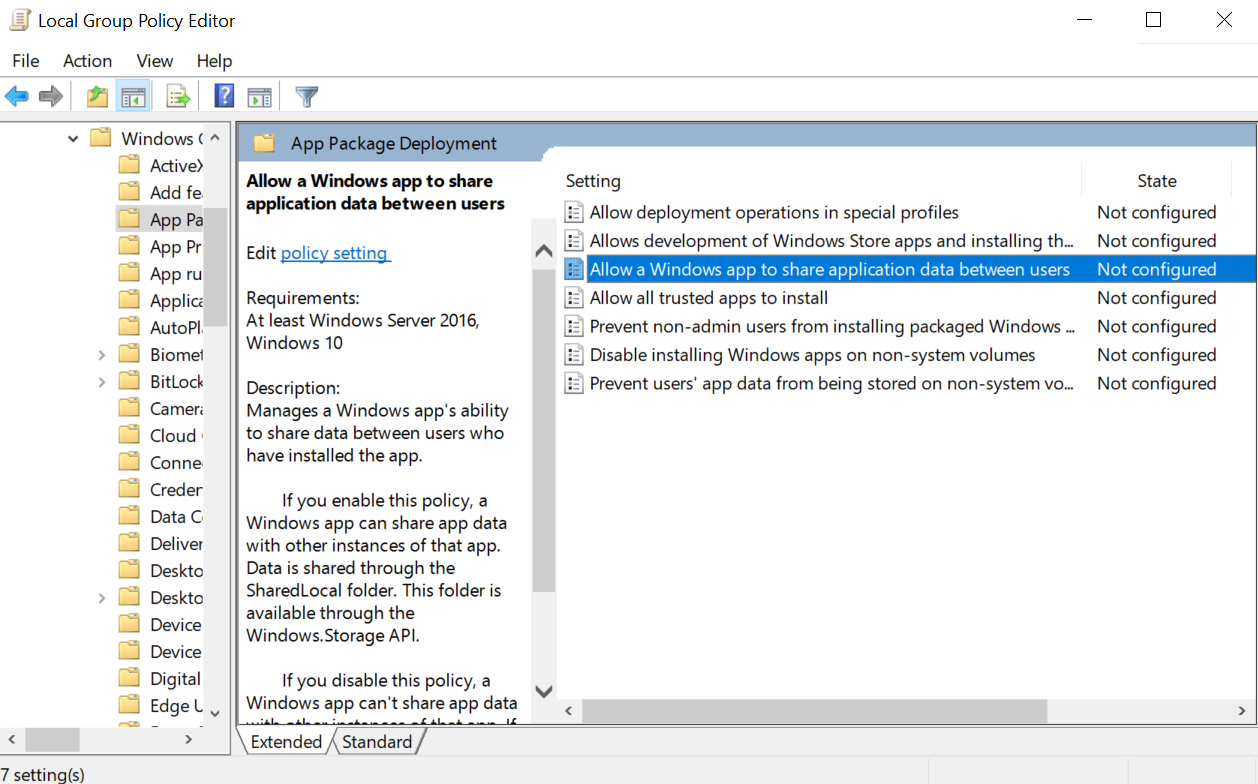
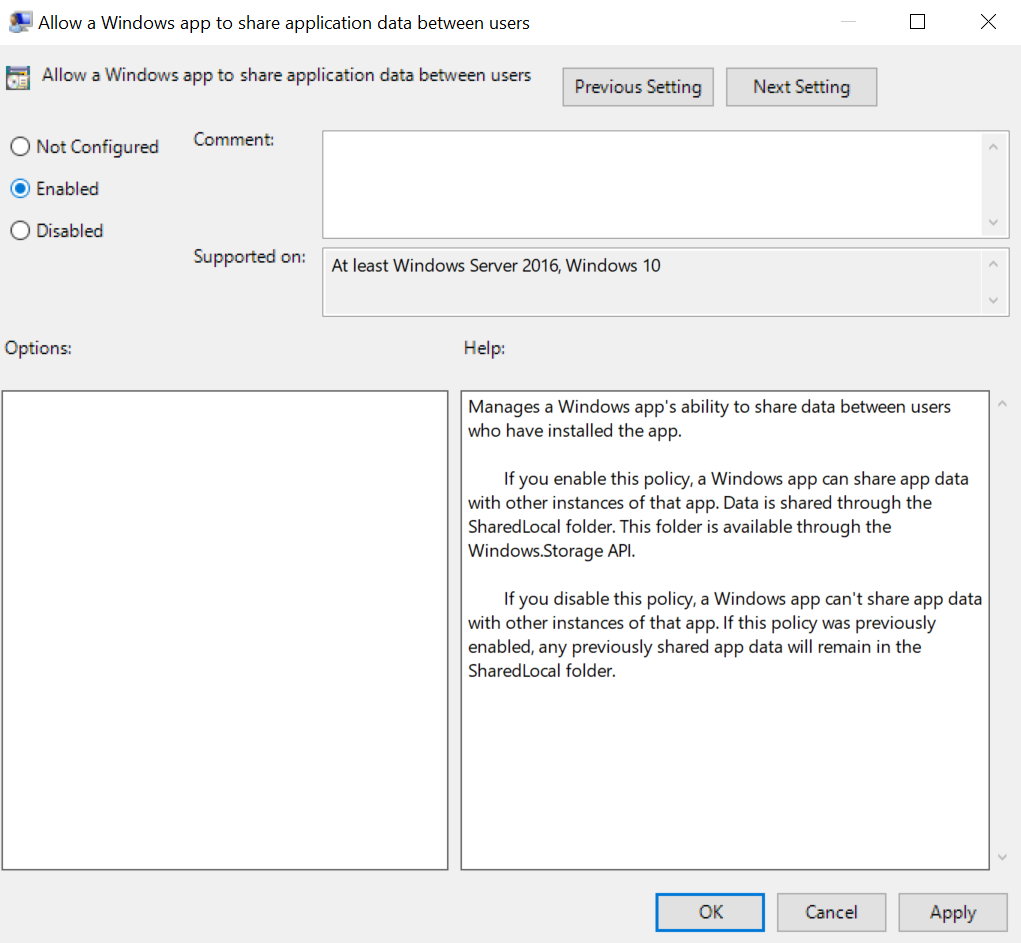
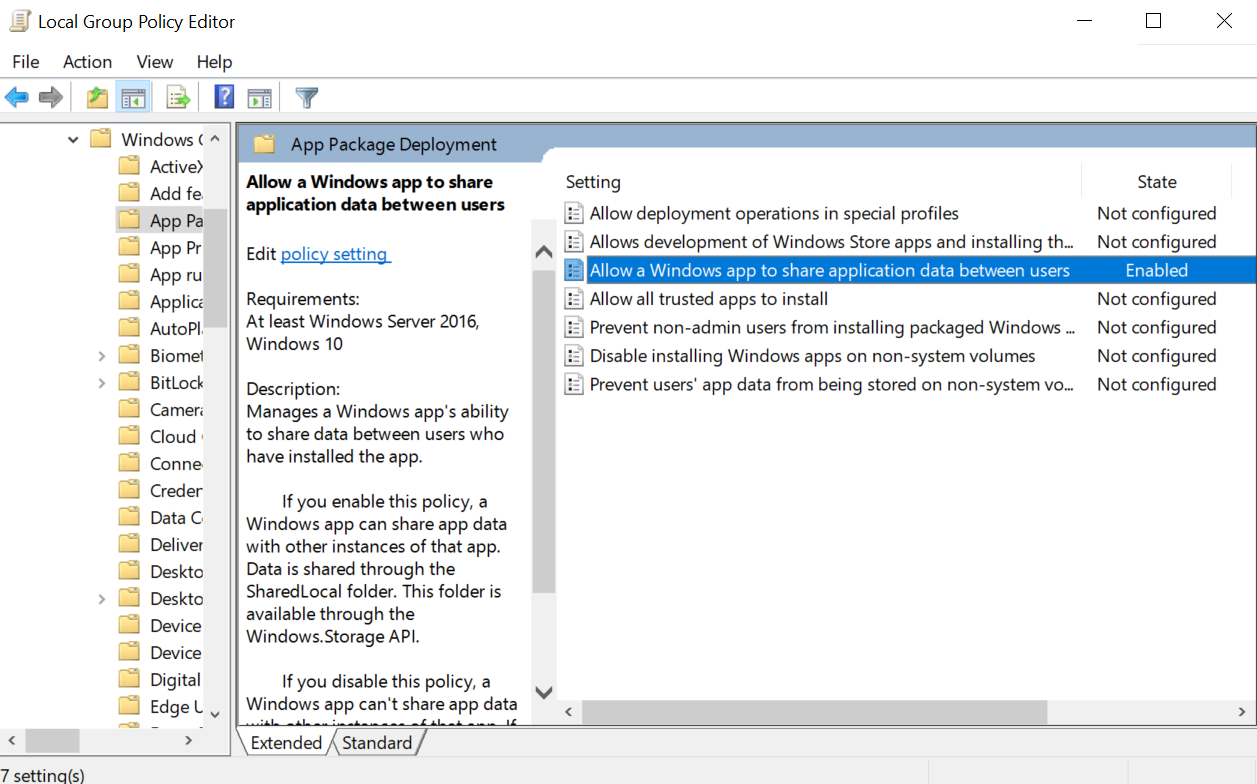
However, automatic registration for all users is only possible if your organization has enabled the policy to "allow a Windows app to share application data between users."
If this policy is not enabled, the application will not automatically register the app's license and will require for you to manually input the license for each additional user on the computer.
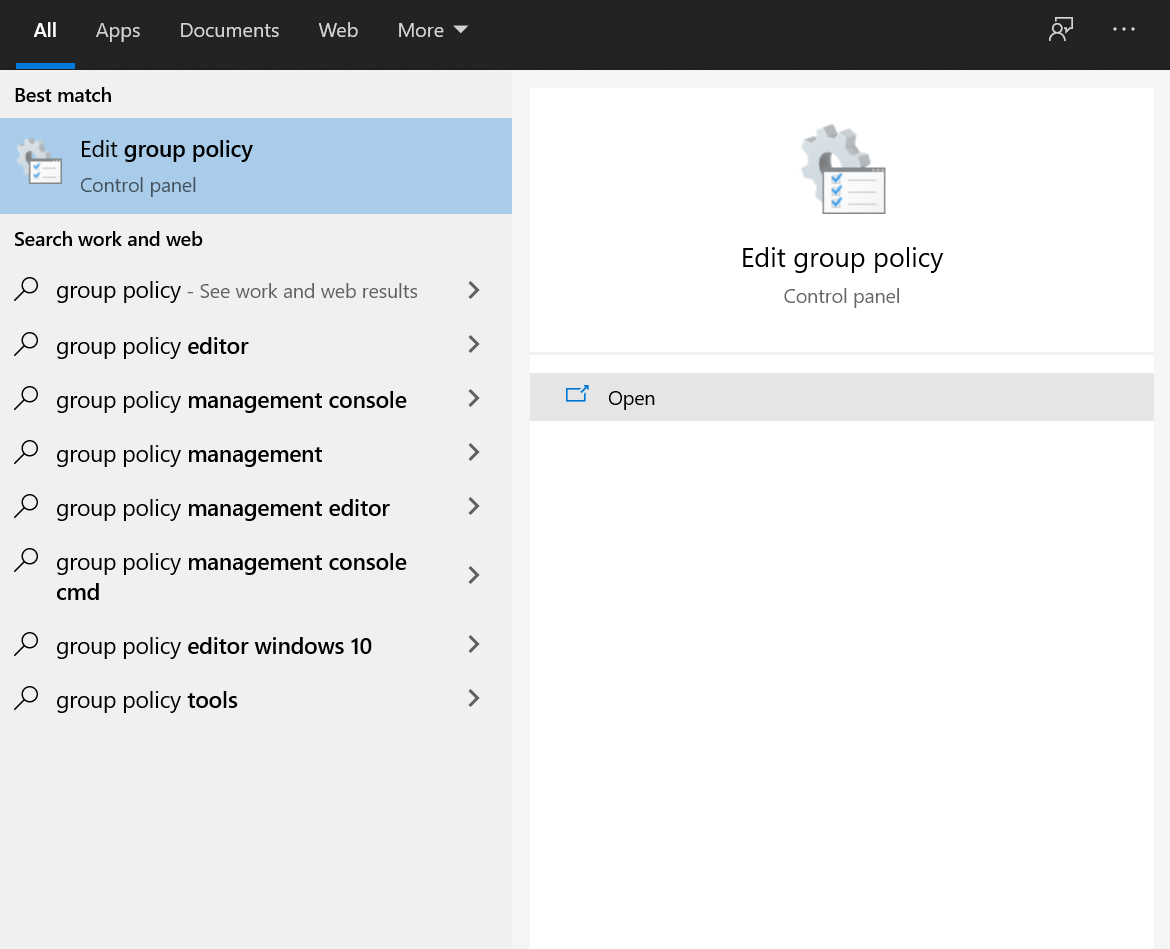
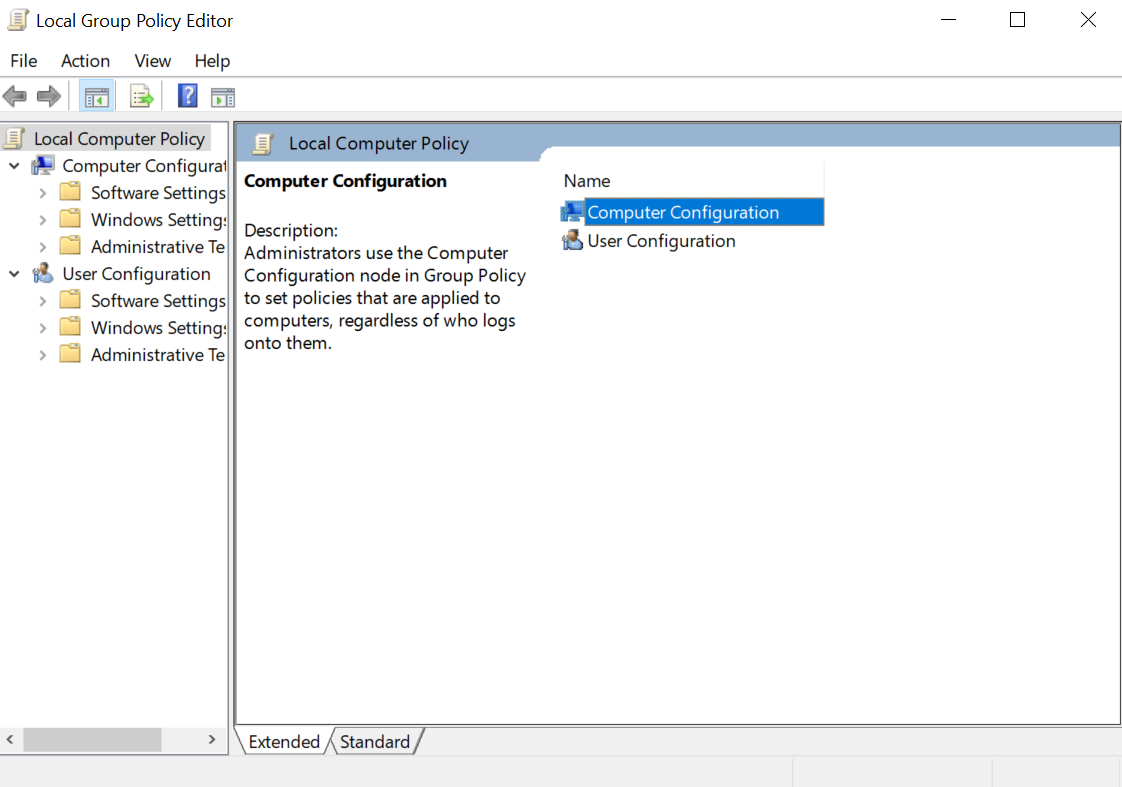
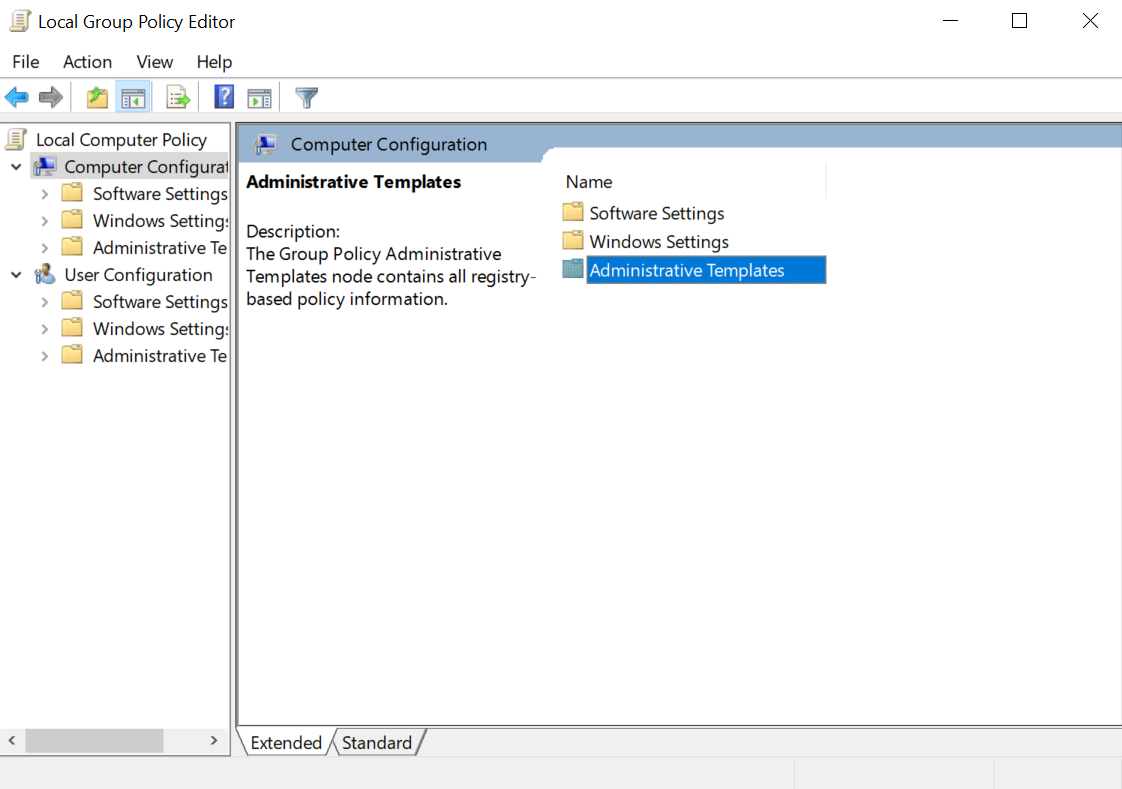
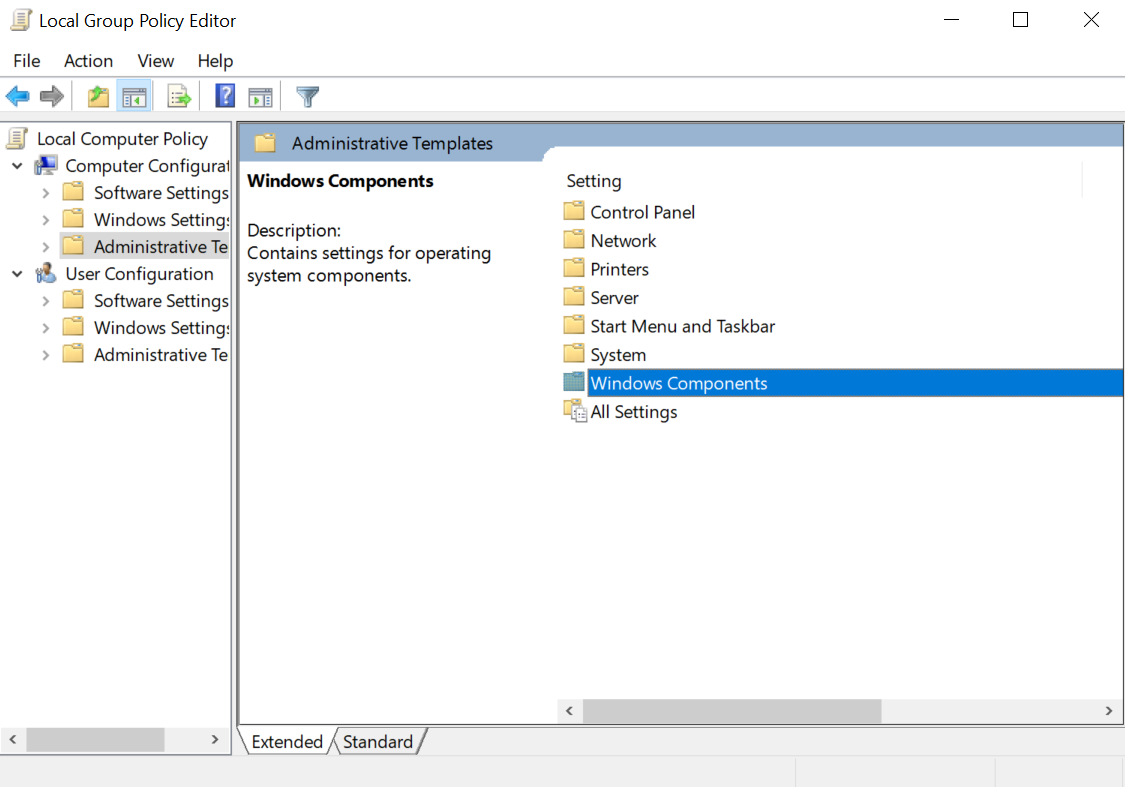
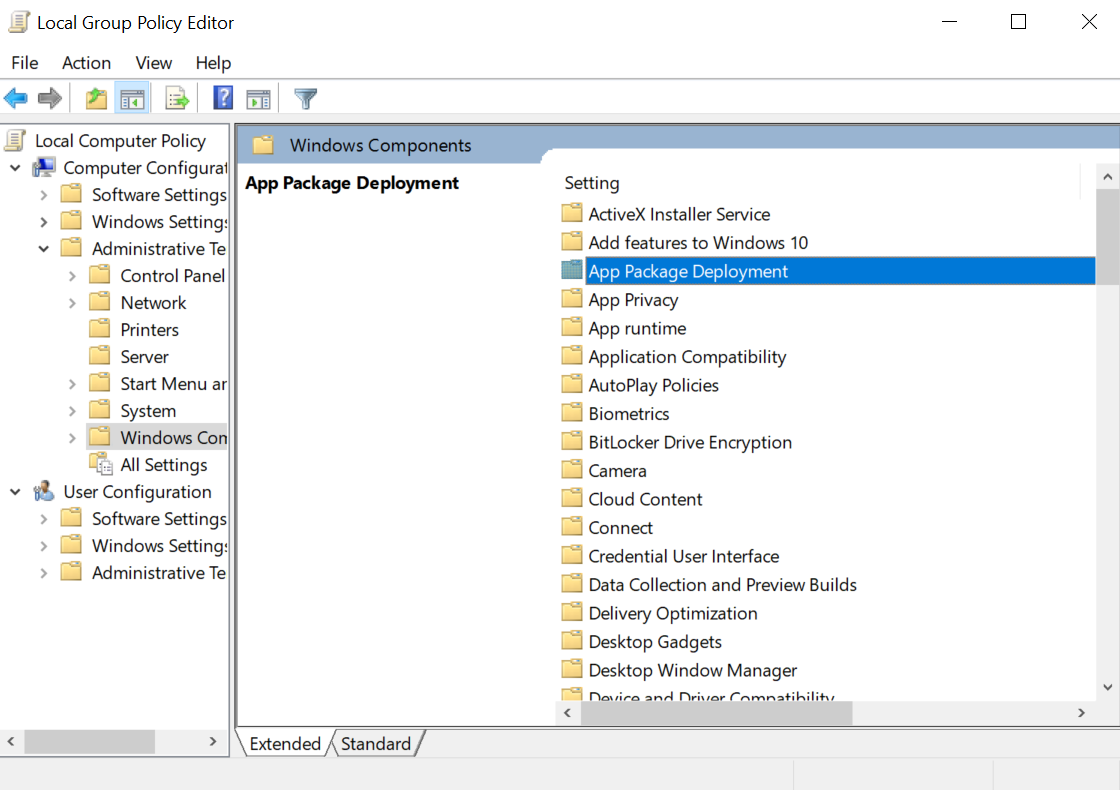
This policy can be found in:
Local Group Policy Editor/ Computer Configuration/Administrative Templates/Windows Components/App Package Deployment