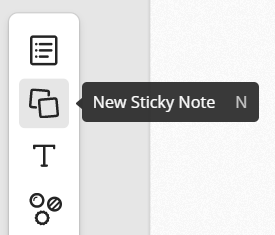
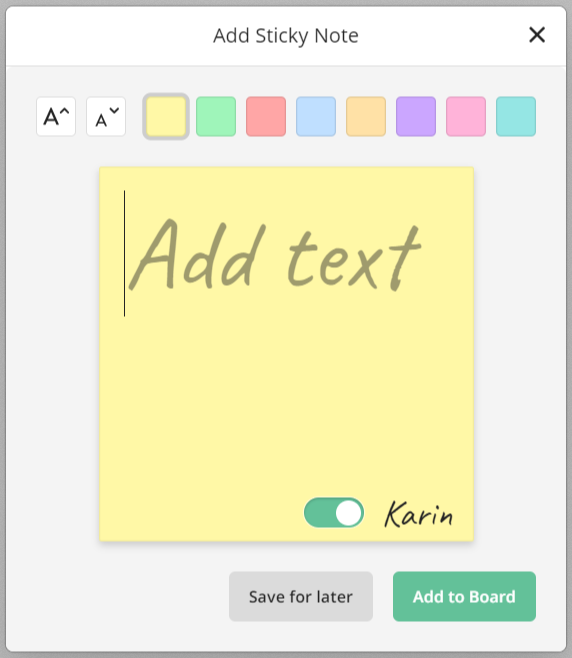
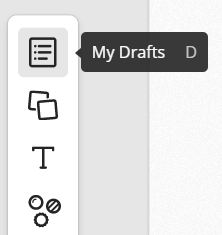
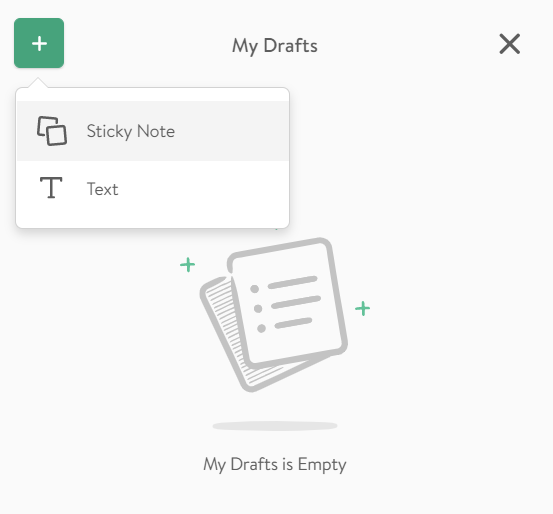
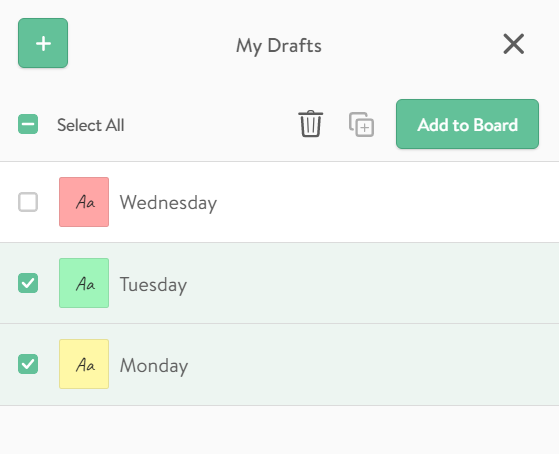
How to Add and Edit Sticky Notes? From the Toolbar Select 'New Sticky Note' from the toolbar. The Sticky Note editor will appear. Add your text and customize the size and color. 'Add to Board' will add the sticky note to the Board. You can also choose to 'Save for later' to add it to 'My Drafts. Toggle the Signature on and off to display your name on the Sticky Note. You can edit sticky notes from the Board by double clicking on it. From My Drafts Select 'My Drafts' from the toolbar. Select 'Sticky Note' from the green '+' button to bring up the sticky note editor. Use the keyboard shortcut when the Sticky Note editor window is open Ctrl+Enter to rapidly save a sticky note and being another. You can add specific sticky notes to the Board when you are ready or send them all at once by clicking 'Select All' and 'Add to Board.'
![FlatFrog_logo.svg]](https://help.flatfrog.com/hubfs/FlatFrog_logo.svg)